Wednesday, May 27, 2026

How to Add a Free GDPR/AdSense Compliant Cookie Consent Banner with 'Accept & Reject Buttons' on Blogger

 If you run a Google Blogger (.blogspot.com) site with Google AdSense enabled, relying on the platform's default notification layout puts your account at risk. I was blocked due to this complaince issue for more than a year, and all my efforts of getting this resolved went into vain.

While Blogger automatically displays a baseline cookie notice to visitors inside the UK and EU, it lacks an explicit, one-click "Decline/Reject" button. Under modern data privacy laws like GDPR and UK PECR, tracking scripts must be strictly blocked until a user gives explicit consent. Forced consent through a simple "OK" button can cause manual AdSense policy compliance rejections or account deactivation.
This step-by-step tutorial covers how to install a completely free, automated Accept and Reject cookie consent banner directly onto your Blogger theme template layout to fully protect your monetization stream and you can get writer in you to reach the hearts of readers in world without any further worry. Just follow this step-by step guidance.

🎯 Why Default Blogger Cookie Banners Fail AdSense Audits
  • No Script-Blocking Logic: Google AdSense uses third-party marketing trackers. Your layout must pause these scripts before the user interacts with the screen.
  • Forced Consent Traps: Banners that only contain an "OK" or "Got It" link are legally considered non-compliant. The "Reject / Decline" option must be given equal prominence next to the accept button.

🛠️ Step 1: Generate Your Open-Source Cookie Script
To bypass platform limits and avoid monthly traffic caps, use a free open-source generator tool.
  1. Open a new web browser tab and navigate directly to the public TermsFeed Free Cookie Consent Generator.
  2. Scroll to the Choose your compliance preferences header block and click GDPR Directive. This activates the strict JavaScript wrapper that holds tracking codes back until authorization is granted.
  3. Scroll to the Customize your Cookie Consent layout form field and type in your details:
    • Website Name: Your Blog Title  , I put 'Sanjay Nikalje|Blog' for my blog
    • Note: The universal script automatically parses your domain URL on page render, so you do not need to supply a dedicated target address.
  4. Select your layout format style (Simple or Headline are ideal for clean readability).
  5. Choose either a Light or Dark color palette layer to complement your site branding.
  6. Leave the Privacy Policy URL checkbox blank if your custom document layout isn't published yet.
  7. Scroll down to the bottom panel titled Copy your Cookie Consent code and click the blue Copy to clipboard button.

💻 Step 2: Install the Script Code in Blogger HTML
  1. This is the most important step. Log into your central Google Blogger Dashboard.
  2. From the left navigation menu tree layout, click on Theme 🎨.
  3. Locate the primary orange CUSTOMIZE layout button. Click the tiny dropdown arrow directly beside it and select Edit HTML.
  4. Click anywhere inside the main black box editor containing the code lines.
  5. Open the inline search finder utility by clicking Ctrl + F (Windows) or Cmd + F (Mac).
  6. Type exactly <body> into the search bar field and hit Enter.
  7. Look for your theme template's opening body element. In many customized templates, it displays dynamically as below as well:
    html
    <body expr:class='&quot;loading&quoloadt; + data:blog.mobileClass'>
    
    this is just an example , do not use this. it can be just <body> or as above.
  8. Place your cursor right at the very end bracket (>) of that line, and hit Enter on your keyboard to drop down and create a clean, empty line block.
  9. Paste the TermsFeed script snippet directly onto that fresh line using Ctrl + V (or Cmd + V).
  10. Move your cursor to the top right corner of the editing dashboard screen and click the Save icon (floppy disk). Wait for the system to throw an "Update Successful" alert confirmation.

✅ Step 3: Test and Verify Compliance
The moment to confirm if it worked. Make sure your browser isn't serving cached data files, open a separate Incognito / Private Browsing Window and type in your complete blog domain address.
Your dark or light custom modal overlay block will slide right into place. Give it a test drive:
  • Click I Decline to confirm it closes safely without triggering system layout loops.
  • Clicking I Agree will release your Google AdSense code to serve high-yielding personalized ads across your layout spaces safely.
Post update my blog looks like this now:


Let me know if you found this useful,or comment me back if you neeed any assitance or have any suggestions.


Tuesday, February 20, 2024

How to create any mathematics tables with excel...


Generate any tables with excel...

1.       Go to excel sheet, in first cell ‘A1’ enter the number whose table you want to generate, for example I want to generate table of 19, so write ‘19’ in ‘A1’

2.       In cell ‘B1’ write multiplication sign ‘*’

3.       In cell ‘C1’ write ‘1’ [table starts from 1, or the number from where you want to start]

4.       In cell ‘D1’ write ‘=’

5.       In cell ‘E1’ write the answer '19' ie. ‘19*1=19’


6.       In below row as well from cell ‘A2’ to ‘E2’ repeat just update cell ‘C2’ as ‘2’,  and ‘E2’  as ‘38’ ’ because this row is ‘19*2=38’[here we try to educate excel with our data, so that it can generate further data that you need]


7.       And now select both rows you added data for and just drag down till where you want generate the table


8.       Your table is ready, in this way you can generate table of any number


How to add data in cells available in different tabs in excel


Adding cells available in different tabs in an excel


·         Suppose we have sheet-1 as ‘Jan’ having ‘Sale in January’ with value as ‘100’


·         Similarly we have sheet-2 as ‘Feb’ having ‘Sale in February’ with value as ‘300’


·         Now we want to know the total sale so far of all months, in this example of January and February in the sheet-3 as ‘Total’ having ‘Total Sale’


·          Just double-click on the cell, where you want the sum of the total to appear, ie cell ‘A2’


·         1. Write ‘=’[without quotes, and go to tab ‘Jan’ and click cell ‘A2’, it would appear as below]


2. Now, without clicking anywhere else, write ‘+’ at last, in the formula generated


3. Now, click on tab ‘Feb’ and click cell ‘A2’ , then the formula would appear as below


4. Hit the enter key, you will get the sum of data available in different tabs in excel, as below[100+300=400]:


Monday, February 19, 2024

आज की कहानी-- एक पत्थर-सफ़लता कैसे पायें


सफ़लता कैसे पायें


  एक गाँव में, पत्थर से मूर्ति बनानेवाला कारीगर था | 


बगले के गाव से कुछ लोग आये उसे मिलने, और कहा कि वो एक मूर्ति बनाना चाहता है और उसे मूर्ति बनाने की ऑर्डर देते हैं|


  जब वो कारीगर एक पत्थर के ऊपर छन्नी-हातोडे से काम करना शुरू करता है, “मुझे मत मारो, मुझे मत मारो,

मुझे छोड़ दो” ऐसी आवाज आने लगती है| कारीगर परेशान होकर ढूंढने लगता है, कि ये आवाज़ कहासे आ रही है| कुछ देर बाद उसकी नज़र उस पत्थर पर पड़ती है, जिस पर वो काम कर रहा था, वो पत्थर उसे कहता है, “मुझे काफ़ी तकलीफ़ हो रही है, क्या तुम कोई और पत्थर पर काम कर सकते हो?”


  कारीगर को पत्थर पर दया आती है और वह दुसरे पत्थर पर काम कर ना शुरू करता है|  दो महिनो बाद गाव वाले मूर्ति लेने आते हैं, और मूर्ति देखकर काफी खुश हो जाते हैं| जैसे ही वो मूर्ति को लेकर जाने लगते हैं, उन्में से एक की नज़र उस पत्थर पर पड़ती है, वो कहता है “क्या आपको इस पथरकी ज़रूरी है? अगर ना हो तो, क्या हम इसे ले जा सकते हैं?” कारीगर ने मन ही मन सोचा...ऐसे भी इसे रख कर कोई फ़ायदा नहीं है, थोड़ी सी तकलीफ से रोने लगता है, मेरे पास रहेगा तो केवल जगह इस्तेमाल होगी, शायद ये लोग इसका ज्यादा ख्याल रखेंगे| यह सोच कर वो उन्हें वो पत्थर दे देता है|

  कुछ सालों बाद वो कारीगर एक गांव से जा रहा होता है, और उसे याद आता है की, उस गांव मैं, उसने एक मूर्ति बनाकर दी थी| जब वो मूर्ति को देखने मंदिर में पोहंच जाता है, तब मंदिर की विशालता, मूर्ति को मिलने वाला आदर-सम्मान, गाँववालों को मूर्ति में दिखाइ देने वाले भगवान, कारीगर इस्से तृप्त हो गया, और वो वहां से जाने लगा| तब उसे याद आया कि उसने इस मूर्ति के साथ एक और पत्थर दिया था, वो कहा है?

  तभी एक श्रद्धालू आता है और भगवान से प्रार्थना करता है और एक पत्थरपर नारियल फोड़ता है| कारीगर उस पत्थर के पास जाता है और, तब उसे पता चलता है कि ये वही पत्थर है| कारीगर उससे पूछता है “कैसे हो? उस वक्त तुम्हें तकलीफ हो रही थी इसलिए मैंने तुम्हें हाथ नहीं लगाया| अब तुम खुश तो हो ना?

  पत्थर बोलता है, “शायद उस वक्त में थोड़ी तकलीफ़ सहन करता तो आज में कुछ और होता, थोड़े से घाव से बचने के लिए, मैंने तुम्हें ना बोला, आज हर कोई इतने सालों से यहां आकर प्रार्थना करता है और मेरे सर पर नारियल फोड़ता है| उस वक्त थोड़ी सी तकलीफ से भाग उठा, अब जिंदगी भर तकलीफ में रहूंगा


कहानी का भावार्थ/नैतिक : सफलता के रास्ते में अंगिनत तकलीफ़े आएंगी , तकलीफोंका डटकर सामना करना, हार नहीं मानना, सफ़लता तुम्हारी ही होगी|


कहानी अच्छी लगी तो कमेंट करके जरूर बताएं|


Sunday, February 18, 2024

How to remove black background from a copied text


Remove black background from a text copied from a website                       


·         Below is an example of text copied from a site which has black theme:

Get started for free

Try Webflow for as long as you like with our free Starter plan. Purchase a paid Site plan to publish, host, and unlock additional features.

·         Below possible ways can help to get rid of it

·         Select the text and navigate to ‘Page Layout -> Page Color -> No Color’


OR

·         Select the text and navigate to ‘Page Layout -> Page Borders -> Shading -> Fill -> No Colors-> OK


·         Sometimes due to no color, the text might appear invisible, without any clicking anywhere just navigate to ‘Home -> Font Color -> Either Automatic or Black color’


·         Below is the output:

Get started for free

Try Webflow for as long as you like with our free Starter plan. Purchase a paid Site plan to publish, host, and unlock additional features.


Saturday, February 17, 2024

How to create simple ‘On Screen Keyboard’ tool/batch file


How to create simple ‘On Screen Keyboard’ tool/batch file

·         Sometimes keyboard doesn’t work, so you can’t type ‘osk’[On Screen Keyboard] as well.

·         So it’s best to have such tool handy for such unforeseen situation.

·         Open notepad and write ‘C:\Windows\System32\osk.exe’[without quotes]:

·         Save it as osk.bat on desktop:


·         Your osk executable file is ready:

·         Now double click this osk.bat file to execute, and your ‘On Screen keyboard’ opens:


Friday, February 16, 2024

How to create simple '2-D and 3-D Pie Chart' using 'Excel'

How to create simple 2-D and 3-D Pie Chart using Excel

1.Creating 2-D Pie Chart:

  • For creating chart we need data in excel, so consider below data having , Male count is in cell ‘B2’ and Female count in cell ‘C2’ as below:


  • Select the rows whose Pie Chart you want to create, for example here we select header  ‘B1’ and ‘C1’ as same will reflect as headers or legends in the graph and also select row with cells ‘B2’ and ‘C2’ as it contain required  chart data:

  • With these rows selected, click ‘Insert’:

  • Then under ‘Recommended Charts’ select arrow of circular shape:


  •     Under ‘2-D Pie’ select the type of chart you want:


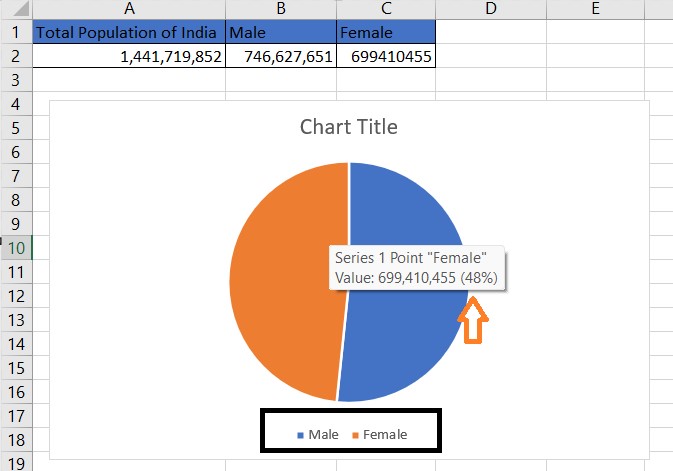
  •  And your 2-D Pie Chart is created, showing Legends ‘Male’ and ‘Female
  •  If you hover with mouse on the chart, you can also find percentage of that data as well:


2. Creating 3-D Pie Chart:

  • Similarly we can create 3-D Pie Chart, consider below data of age groups, from cells ‘B23’ till ‘E23’ which depicts age group from ‘Age 0-14’, ‘Age 15-64’, ’Age 60-64’, and ‘Age 65+’ out of the total population:       


  •     Select the rows whose chart  you want to create, for example here we select header from  ‘B22’ till ‘E22’ as same reflect as legend/headers in the chart, and also select row from cell ‘B23’ till ‘E23’ as they contain required chart data:


  •      With these rows selected, click ‘Insert’:


  • Then under ‘Recommended Charts’ select arrow of circular shape:


  •      Select ‘3-D Pie’:


  •     And your 3-D Pie Chart is created, showing legends ‘Age 0-14’, ‘Age 15-64’, ’Age 60-64’, and ‘Age 65+
  •     If you hover with mouse on chart, you can also find percentage of that data as well:


  •      Make this more attractive, by clicking on the chart and select the look and feel you want:


  •       And its done:


  •      Double click on ‘Chart Title’ and rename it as required, like below:


The "Light Switch" is Dead. Long Live the Spinning Coin[Quantum Computing]

  The "Light Switch" is Dead. Long Live the Spinning Coin. Been playing around with a bit of Quantum Computing this week. Found a ...